windows, in place.
A window manager for the menu bar. Windows snap to a grid of square cells, find the free space by themselves, and go where your keys send them.
Version 0.3.8 (116)Release notes
what free apps do not do
- 01
Drag one line, the whole screen follows.
Pull a line shared by windows and every neighbour moves with it. Where four windows meet, one point moves all four.
- 02
A slip is fine: Undo.
Every arrangement is read back. If an app refuses a size, MACgrid puts everything back as it was.
- 03
Open your Mac, your desk is back.
A workspace opens the right apps and puts them in the right places. It can switch by itself when you plug in a display.
Four moves
Drag the line between windows and every neighbour follows. Two windows grow, two shrink, in one move.
Where four windows meet, grab the corner point. All four move at once. No other window manager does this.
Every arrangement is read back. If an app refuses a size, MACgrid puts everything back and Undo is one key away.
A workspace brings your desk back: the right apps, opened if they are missing, in the right places. It can switch by itself when a display is plugged in.
- 37 MB
- memory when idle
- 89
- MCP tools, so AI agents can run it
- 0
- SIP changes, and permissions are never reset
- 5
- languages, with iCloud sync and backups
watch it work
The app's own panels, replayed step by step. Point at a step to jump to it.
Arrange: four windows, one panel
Press ⌃⌥F and pick apps in priority order. Each one appears in the preview on the right as you pick it; the bar shows how much of the display they need.
Drag one cell onto another and the two windows trade places.
Drag the bar between two cells to give one window more room; its neighbour gives it up.
Eight layouts: Optimal, Columns, Rows, Grid, Main + Side, Center, Spiral, Random. The preview redraws at once.
Press Arrange and the windows move into those places on the grid. One Undo puts every window back.
Edges and corners
Start dragging any window. A grid of square cells appears and a cyan frame shows where the window will land.
Touch the left or right edge and the frame becomes half the screen. Let go and the window fills it.
Drag into a corner for a quarter of the screen.
The last window goes to the other corner. Three windows, no overlap, nothing resized by hand.
Free space, with Command held
This window sits on top of two others. Hold Command and start dragging it.
MACgrid works out the nearest empty rectangle and shows it. The frame is the exact space left between the other windows.
Changed your mind? Press Escape before you let go and the window returns to where it was.
Drag again with Command held and let go. The window takes the free space, edge to edge, on top of nothing.
six ways to place a window
- 01
snap
Drag or resize a window and a grid of square cells appears. Let go and the window sits on it. Edges close to the screen edge go all the way.
- 02
free space
Hold Command while you drag. MACgrid works out the empty rectangle and fits the window into it instead of on top of another. Escape puts it back.
- 03
zones
Draw your own areas by screen ratio, or start from two columns, three columns or four corners. Hold Option to drop a window into one.
- 04
21 keys
Halves, thirds, corners, fill, centre, and move by one cell. Every shortcut can be changed.
- 05
layouts
Save a whole desktop under the name of a job. Bring it back later; apps that are not running can be opened for you.
- 06
new windows
Decide what happens when a window opens: place it, bring it forward once, or leave it alone. Set it per app.
one key, a whole desk
Zone templates and saved layouts move every window at once. Pick one and watch the four blocks snap.
- cell
- square, sized by cell, rows or columns
- edge snap
- ≈ 24 pt
- actions
- 21
- displays
- a grid profile per display
- mcp tools
- 89
- memory
- 37 MB
- binary
- arm64 + x86_64
The app today
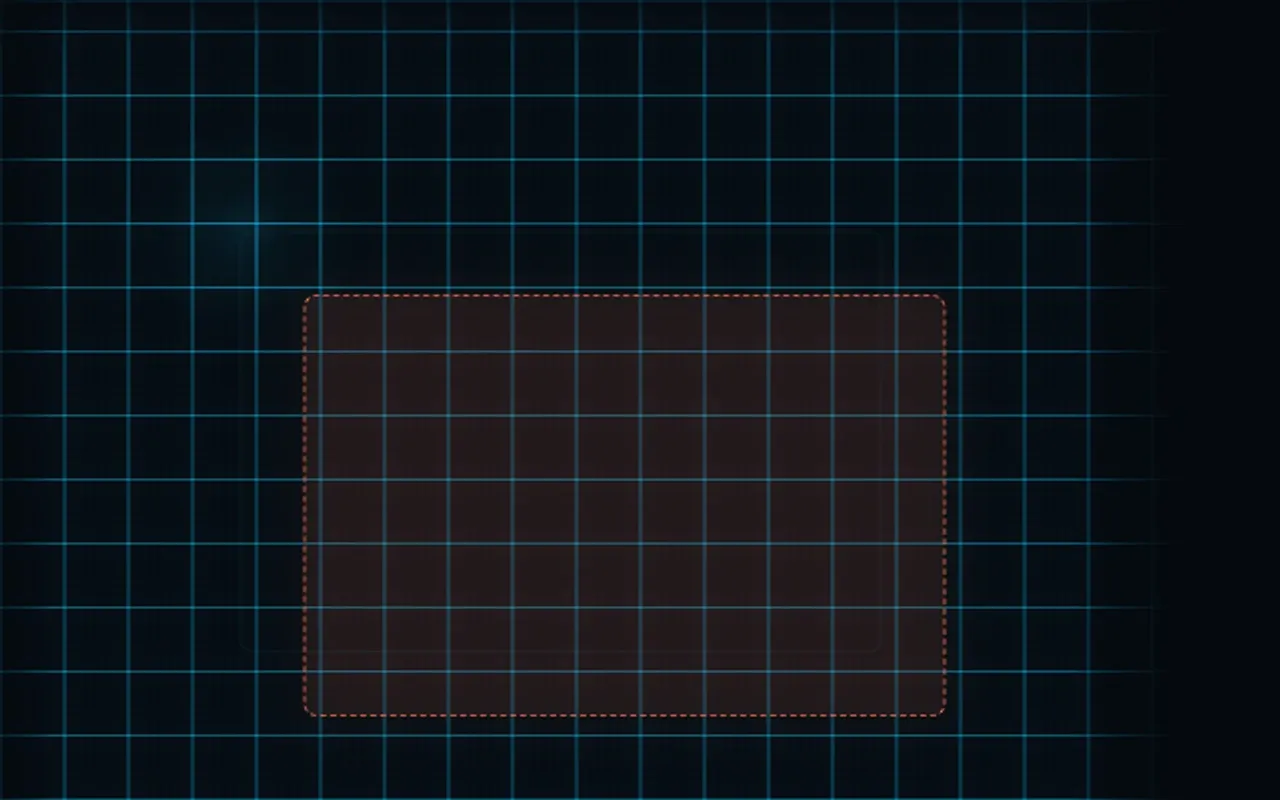
MACgrid has no window of its own. These are frames of the overlay it draws over your desktop while you drag, taken from the app's own animation tests on an empty screen.


Good to know
- With Stage Manager on, MACgrid pauses.
- It does not move windows between Spaces.
- Apps decide their own minimum size, and MACgrid never forces a window smaller. So it cannot promise that windows never overlap.
- It needs the Accessibility and Input Monitoring permissions to move windows and read your keys.
- Zones and keyboard shortcuts are off until you turn them on.
- The Intel build compiles and is included; it has not been tested on an Intel Mac yet.
- The grid only exists over your own windows, so the frames above show it on an empty screen. The desktop at the top of this page behaves the way the app does.
Privacy
Everything happens on your Mac; the network is used only for licence checks and updates. Screen Recording is requested only if you switch on the experimental Overview, and those images stay in memory.
For your AI assistant
89 MCP tools move, tile and arrange windows through native calls, with no mouse. The tools never return window titles or what is inside a document.
$6, once.
Pay once and keep the app. Every purchase includes one year of updates. After that you keep the version you have, forever, and you can renew any time to get the newest.
- Day oneYou pay once
- 1 yearEvery update is included
- After thatStill yours, still runs. Renew for the newest.
Total
Prices in US dollars. Tax is added at checkout.